Getting Started with the Appium Perl Bindings
We've started work on a set of Perl client bindings for Appium. We're using Appium to test out a few different ideas for mobile apps, and since our existing browser automation framework is written in Perl, it makes sense to use Perl for our mobile automation as well. I recently received an email from probably the first person other than myself interested in such a pairing (Perl & Appium) for some help getting started, so I'm putting together a collection of steps to get going with the Appium Perl bindings.
1. Install Appium
You can install Appium via npm:
> npm install -g appium
It comes with a helpful binary appium-doctor that will give you the
status of your setup. The Appium project has official
installation docs, and I made a previous post with
OS X steps on this blog a few months ago. This post will be slightly
more Windows focused, but it's all a bit theoretical, as I'm not using
a Windows machine to write this post :P. For running Android tests
specifically, you'll need to download the Android SDK Tools, and
set/modify a couple environment variables; we've broken each part down
into the following steps.
2. Download Android Dependencies
Follow the instructions on the Android Developer website for downloading at least the SDK Tools. After the download, you'll need to open the SDK Manager and get the appropriate tools that correspond to the version of Android you're interested in; the Android developer website has a short guide on how to do so.
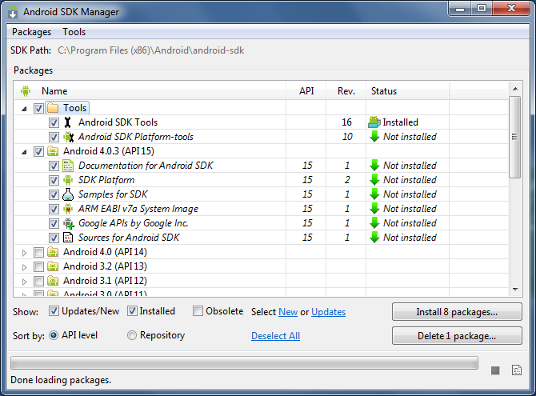
From the Tools folder, you definitely want the SDK Tools, the
Platform-Tools, and the Build-Tools. Choose the highest version of
Android, or whatever version of Android your device has, and select at
least the SDK Platform and a system image like ARM EABI v7a System Image. My SDK Manager looks like
this with those checked. Select at least those, click
Install packages... and accept all the licenses for those packages.
3. Set up Android Environment Variables
You'll need to set JAVA_HOME if it's not set; Atlassian has a
nice article about doing that. You'll need to do the same
thing for ANDROID_HOME: find the path of where you downloaded the
Android SDK, create a new environment variable called ANDROID_HOME
and set it to the download path of the sdk.
Finally, you need to add the tools/ and platform-tools/
directories inside of ANDROID_HOME to your PATH. It will be in the
same place as when you edited JAVA_HOME and ANDROID_HOME; choose
to edit the PATH variable and add
;E:\android-sdk\tools;E:\android-sdk\platform-tools to the end,
assuming of course that your SDK was in E:\android-sdk\; adjust as
necessary.
4. Build or obtain an .apk of your app, or pre-install it
This will vary wildly depending on the app you're building and your
particular build tools. Build your app and get a hold the path to your
.apk. You also have the option to pre-install the app on the
emulator or device on which you will be testing.
5. Make and start your Android emulator
If you're using a real device, plug it in and allow the USB debugging permissions when prompted on your device. You may need to install drivers, or perhaps Windows is smart enough to do it for you - I can't quite recall.
Alternatively, you can create and start an emulator with the following commmands:
> android create avd --force -n appium -t android-21 --abi x86
> emulator @appium
That will create an Android Emulator called "appium" for the latest version of android (android-21/lollipop). The second command will start it up; you should see it pop up on the screen.
At the end of this step, doing adb devices in a command prompt or
console should get you some output like the following:
> adb devices
List of devices attached
emulator-5554   device
If you're using a real device, it won't say emulator. If the output of
adb devices is blank, something went wrong :(
6. Write a perl test!
At this point, you should be able to run appium-doctor in a command
prompt without any complaints; if you see some, you should go back and
fix any outstanding issues. Hopefully all checks are successful; if
so, kick off the Appium server and keep reading.
> appium
To install the Perl bindings, you can use CPAN or cpanm:
> cpanm Appium
With your emulator or device connected (verify via adb devices) and
Appium server running (verify via wget localhost:4723/wd/hub/status), the following script should get you
started after you fill in the path to your apk.
use strict;
use warnings;
use Appium;
use Test::More;

my $path_to_apk = '';
my %caps = (
    app => $path_to_apk,
    deviceName => 'Android Emulator',
    platformName => 'Android',
    platformVersion => '5.0.1',
);

my $appium = Appium->new(caps => { %caps });
ok($appium, 'We have an Appium driver available!');
$appium->quit;

done_testing;
At this point, it's up to you to write your tests! :) If anything
doesn't work, check the Appium log for warnings and errors, especially
about ANDROID_HOME or any of the environment variables we set up
previously.
Feel free to reach out with any issues; if you come across bugs in the Perl client bindings, its Github repository is waiting for its first bug report! Good luck!